Send Students on an Odyssey When Doing Research
 In my ENG102 Freshman Composition course I have 10 assignments and four papers that students do before they submit their final research projects. Five of the assignments are research assignments and are required in order to submit a final paper. I named the research assignments Odysseys, something I borrowed from a colleague years ago when I first started teaching at CAC. The whole idea of the Odyssey assignments is to get students practicing several research skills in one assignment that are directly related to their final projects. This is how I introduce these assignments to students.
What is an Odyssey?
An odyssey, famous for a Greek epic poem (attributed to Homer) describing the journey of Odysseus after the fall of Troy, is a long wandering and eventful journey. This is a perfect description for writing a research paper. It’s not something that we put together in a day. Writing a research paper is a long wandering and eventful journey, so some of the key journeys in this process have been labeled odysseys to indicate their importance. All Odyssey assignments are required and must be submitted in order for your final paper to be accepted. No skipping Odysseys. They are mandatory.
The Odyssey assignments include: Read more
What Do Students Learn by Using Social Bookmarking Site Diigo?
Initially students don’t care too much for Diigo when I introduce it in an assignment in Week 2 of the semester. They’re still trying to get used to all the other new technology in the online course, and Diigo is almost the stone that breaks the camel’s back. But not quite. They warm up to it as the course moves on. I’ve questioned whether having students use yet another technology tool is too much for them to deal with, but the advantages of what they learn and experience by using it out weighs any reservations I may have had.
So, what exactly are the advantages of having students use this social bookmarking tool? First, they are in the exploratory phase of their research projects. They’re still trying to figure out what good topics are, so in order to not have them wondering alone in this process, I have them sharing ideas. Diigo allows for students to share bookmarks with each other in a group area. All of the sites saved in the group show up for all to see. 
As shown in the image above, I teach students about taxonomy. Taxonomy is a way to group things together using tags. It makes it easier for students to find common topics within the group posts. Students are supposed to use the class theme tag: “personal+freedoms” along with 5 of their own tags based on the subject of the site bookmarked. Diigo then creates a tag list (right below) for the group so students can look at the most popular topics that emerge during the search process. Rights, laws, health and the constitution are all popular with students. Read more
Social Bookmarking in the Freshman Composition Research Class
I can still remember when Delicious was all the rage. Remember when you had to remember where all the periods went – del.icio.us. I’m not sure I got it right, but those were the days. Then Delicious got bought by Yahoo! and was shelved. Then Yahoo! sold it to the current owners who have, to their credit, tried to regain the hold on the social bookmarking space. But that is all for not, as Diigo took the opportunity to step in when Delicious struggled and created a more education centric service that still thrives today.
I’ve used Diigo in my Freshman Composition ENG102 courses now for about 5-6 years. It’s a research class, so I like to get students started in the research process with something easy – Googling and sharing what they find with each other. I set up the assignment to get students to explore the course theme: personal freedoms to help narrow the focus of their individual research topics. I’ve posted the meat of the assignment below.
Setting Up & Using Diigo
We will use Diigo throughout the semester to keep track of the websites we find during the research process. When you save a webpage, it’s called bookmarking. Diigo is a social bookmarking site. It’s social because it allows for all of us to share our bookmarks with each other. It’s like a big researching party!
Watch this screencast: Setting Up & Using Diigo to learn how to set-up and use Diigo.
Assignment Steps Read more
They’re Here! They’re Here! Finally
We’ve been talking about the so called Digital Natives and the Millennials being the tech generation for years. But I just haven’t seen them in my classes. My students have not only not shown an interest in technology, but often struggled with the technology I used in my classes. But not this semester. In the first class of the Spring 2013 semester, the Digital Natives showed up! Yippee!
First, while Cindy (Co-Teacher) was talking about critical thinking with the class, she asked what a word meant. I wasn’t paying attention (Ha!), so I missed the word, but the student sitting in front of me grabbed her phone and started “messing around” with it. I didn’t pay her any mind either until Cindy called on her. She took one last look at the phone and then apologetically said “I was looking it up,” and then recited her answer to the class. She thought she was doing something wrong, but I was secretly praising her. It wasn’t like it was a vocab word she was supposed to have learned before coming to class. It was a spur of the moment, what does that mean type of question, and she gave the answer. Nice work young lady.

Our Learning Community Circle on Google+
During my part of the learning community class, I was teaching students how to get their Google+ accounts set up, and a student asked if she could get G+ on her phone, and if I knew how to get her school email to forward to her regular Gmail account on her phone. I think if I’d let her, she would have asked me how to do a bunch of other stuff too. We didn’t have time, but I was thrilled that she wanted to know, and thrilled that she is already thinking about managing her tech life. Read more
How Do You Check for Website Validity and Plagiarism?
I got a question yesterday from a colleague about checking website validity. I wasn’t sure I understood the question that was asked, so I’m not sure I answered it correctly. She asked: Is it possible that we could learn more ways to “clear” websites as to content validity. I took this to mean that they wanted to be able to run website content through a plagiarism detector to see if the site was using content without properly citing it. I had heard of a few tools, so I shared the following.
We used to be able to run text through the plagiarism detector in Bb, but not any longer now that we’ve moved to Canvas. We should have a new district wide plagiarism detection tool by the end of this semester or summer, so there could be a way to have students check text using this tool once we get it. There are also a few online plagiarism detectors. I haven’t used them yet, but I may this semester.
- http://www.scanmyessay.com/
turnitin.php – Free Plagiarism Scanner, Checker and Detection Tool. - http://www.plagiarismchecker.com/url/ – Free and lets you check web site by typing in the URL.
- http://plagiarisma.net/ – Duplicate Content Checker for Students, Teachers, Writers. Free Turnitin Alternative. This one lets you scan URLs too.
I think the last two get at what the questioner was asking, at least I hope. If you’ve used any of these plagiarism tools, leave me a comment to let me know how it worked out for you.
Making Online Lit Classes Work – The Secret Sauce
I’ve been teaching online literature courses for four years now. My lit of choice is ENH295: Banned Books and Censorship. I’m still scarred from traditional American and British lit from college, and those courses were already in the capable hands of my colleagues who also teach literature online at GCC. So I went for Banned Books. Makes me feel like a rebel or something, but I like it and the students seem to as well.
Many often wonder how we make online literature courses work when the core element in the face to face class is discussion. We read, analyze and discuss. Well, we also have to write, so moving a course like this online is quite simple actually. We use discussion forums and blogs. This was problematic in the past with our LMS, so I moved the course over to a WordPress blog years ago. I’ve since moved the core content back to our new LMS Canvas, but the blog still remains a central part of the online course. I only moved the core content back for a secure gradebook. I was always nervous about having my grades in the cloud of a non-approved web service in past.
So let’s talk about this blog and how it works for the online lit class.

Playing with Google+ in my Hybrid Class
 Last year I taught two semesters in a hybrid learning community with my colleague and friend Cindy Ortega. We met one day a week for 2 1/2 hours. The other 2 1/2 hours was spent online. I taught ENG102 Freshman Composition and she taught CRE101 Critical Reading. Both classes when you look at the competencies are very similar, focusing on critical reading, writing and thinking. And of course we both teach research because we have to have something to read, write and think about. Our theme for the course was Food Waste and Sustainability, so we had students read the book American Wasteland and watch several movies about sustainability. This semester we watch Lester Brown’s Plan B movie and in the fall we watched No Impact Man. All of our content revolved around the ideas from the book and movie.
So with such an important topic, we thought it would be great to encourage students to be transparent in their work in the course, as what they were discussing and writing about would be relevant to all. With that in mind, I suggested we use Google+ as a blogging platform for students not just share their journals posts with us, but with the world. We did it for two semesters and students loved it. I’ll try to explain how it all worked out. Read more
Online Course Redesign for Better Engagement
I like to tell people that I’ve been designing an online course that I’ve been teaching for over 10 years. I say this because I feel that there is always room for improvement, and with the ever changing landscape of technology tools and LMS tools available, a good online course should never really be “finished.” It’s just ready for the next go round. Well, this next go round, Spring 2013, the ENG102 online course is due for a major upgrade. It seems only appropriate since so many others in Maricopa are going through their own redesigns as they move courses over from Blackboard to Instructure Canvas. I made the move a year ago, but now that I’m there or here, I’m ready for some major upgrades.
So like any good instructional designer would do, I did an analysis and came up with a list. The focus of the redesign is to make the course a little more engaging. I want for students to have more video and interactive lessons and less reading of handouts and texts. And when students do read the textbook, I want to give them more guidance for reading and remembering the concepts in those chapters. Here’s a quick preview of part of my list:

ENG102 Redesign list made in Evernote
TYCA West Presentation: The Not-So-Distant Education – Blended Comp Courses That Rock!
Many community colleges have experienced a growth in students over the past few years, and with a limited number of classrooms available, many colleges are trying to find a way to accommodate the needs of all of these new students. We’ve managed to meet this need by offering more online and hybrid freshman composition courses. Online courses obviously are not for everyone, but what about blended learning? This presentation will demonstrate how I created and now teach blended composition courses that meet the needs of all types of students (dev-ed to honors) by incorporated good course design, gaming, challenged based learning, self directed learning and multimedia elements. I will discuss basic design steps for developing a blended course, as well as discuss the pedagogy and tools necessary to make it a success.
Tools discussed: Canvas, Connect Composition, Google+, GoSoapBox, Tegrity, YouTube, Piazza, SoundCloud, Camtasia Studio and SnagIt (Jing).
Topics Discussed:
- Course Design
- Gaming
- CBL
- Self Directed Learning
- Multimedia
Presentation Slides: TYCAWestBlendedCoursesRock.pdf
Automating the Process of Grading Essays on a Tablet
 When the first iPad came out, I remember saying, “that would be cool if I could grade my essays on it.” But I was thinking of the whole tablet PC method where you could use a stylus and mark up a word document with your own scribbles as well as highlights and what not. It took a few months before there was an app that could do something similar, but it never felt intuitive and never worked on Word docs, only pdf files. This process is clearly still evolving. Since then the major book publishers have improved their online offerings to provide some pretty good grading tools for grading papers online. McGraw-Hill has Connect Composition 2.0, Cengage has Enhanced InSite with the TurnItIn.com suite of tools built in, and Pearson has MyCompLab. I’ve used all three of these tools, and quite frankly they are all pretty good for grading papers online. I couldn’t always say that, but I’ve watch them all evolve into tools I couldn’t live with out. But I digress. You can’t use these tools on a tablet (yet).
So back to this grading on a tablet idea. Some people still want to be able to do this on their tablets. I don’t, not with Connect, InSite and MyCompLab available. I’d much rather grab my Macbook Air and grade on that in a browser than on my Samsung Galaxy Tab. Nevertheless, I’ve come up with a pretty good solution for those of you who would like to do just that – grade on your tablet with a stylus or your finger for that matter. So here goes.
First you need to choose the right annotation app for your preferred device. When I had an iPad, I played with and liked iAnnotate. On my Android devices, I’ve been using ezPDF Reader. There is an iOS app too. Both of these apps work well, although the stylus interaction could be improved, and it might already have been. My finger works well too for what it’s worth. The key is that both integrate with DropBox, so you can access files from your dropBox and/or save annotated pdf’s to your dropbox. More on that later. But here’s the problem. Both apps are pdf annotation tools. I don’t know about you, but my students have a hard enough time submitting .doc files to me. PDF files just might send them over the edge, so in order to grade on my tablet, I would need to convert all the essays to pdf files. I can do that in several ways. Here are a few options.
Option 1: Open every essay and re-save as pdf using Word. Not! Too time consuming.
Option 2: Use Wappwolf Automator for Dropbox. If you have a Dropbox account, set up Wappwolf to automate this process for you. Choose the folder in Dropbox that you plan to put the essays in, and then choose convert to pdf when you set up your automation in Wappwolf. That’s it. It will convert pretty much everything but Apple’s iWorks pages files. Does anyone even use Pages? Anyway, Wappwolf will convert and put the original doc files into a new “processed” folder. It will also auto-convert all the files already in the folder if you’re not starting from scratch.
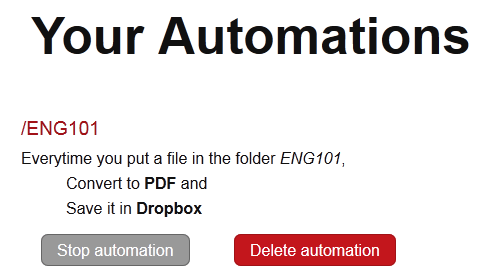 Here’s the process for grading those essays now. Download the essays in bulk from your LMS. This works in both Canvas and Blackboard. Open the essay folder, select all files, and drag them to the Dropbox folder you chose in the first steps. Now all your essays are in that folder in your dropbox, and they are automatically converted to pdf files. Go to your tablet, open your Dropbox app, choose the folder with the essays, open a file using your pdf annotation app and start annotating. Usually when you choose a pdf file to open your device will give you a few options if you have several apps installed. Be sure to choose the annotation app to be the default. Annotate the essay and save it back to the dropbox. When you’re finished, upload the essays back to your LMS for students to view. Now what’s really cool is if you don’t change the names of the original files, Canvas will let you upload them back to Canvas in bulk. This is the only step I’m not sure about, as I’m not sure if Canvas counts changing the file type from doc to pdf counts as changing the file name. If it does, then the bulk upload back to Canvas won’t work. You’ll have to do it individually as you add the grade, like you probably do now.
*BONUS: Here’s a way to automate this even further. Skip the whole download the class essays from the LMS part and automatically add to Dropbox by using a JotForm.
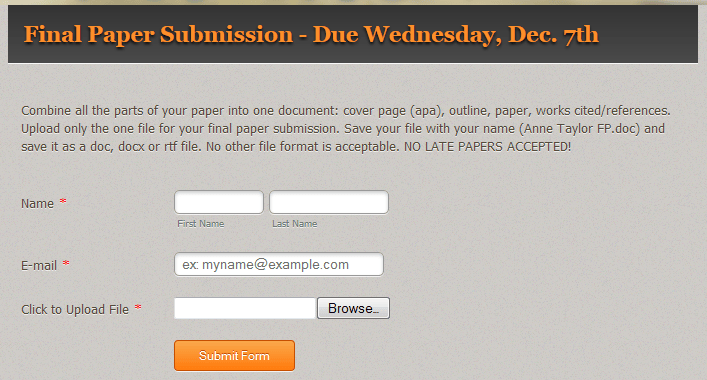 Instead of having students upload their essays to the LMS, create a form for them to use to submit their essays. Embed the form on the assignment page in your LMS. Students fill out the form, attach their essay file and done. A whole bunch of cool stuff happens next. Students can get an email verification that you indeed received their essay. You too can get an email if you want. The file that was submitted gets added to a folder in, yep you got it, your Dropbox account. Then you just follow the steps above. Pretty sweet, no?
Here’s what I haven’t tested. JotForm creates a folder automatically for you in your dropbox, so when you set up Wappwolf Automator you need to be sure to choose the JotForm folder. Now what I don’t know is if Wappwolf will convert files in a subfolder inside the folder you set up, as JotForm creates a new folder for each form you create. So I have a folder named Final Paper Submission (from the form above) inside my JotForm folder in Dropbox. If it doesn’t work that way, you would need to create a separate automation for each essay/form you create. Still not bad.
So there you go. Now you have no excuse not to grade those essays. You can grade them on your tablet or your phone for that matter. Ugh, no thank you. 😉 Let me know if you give this a try.